App Manager¶
Source PDF page(s): 8–11 (of raw/specs/MMS features v2.5.pdf)
User Guide section: §4 (of raw/specs/MMS_UserGuide_v2.5.0.0.docx)
Summary: Centralized management of terminal applications — create apps, upload multiple APK versions, and assign app versions to companies as the basis for base templates.
Owner: Martin (project lead — confirm feature owner)
Status: shipped
Why¶
Terminals run managed applications that must be version-controlled and deployed consistently. App Manager is the source of the app versions that base templates are built from. See MMS Features v2.5 §2.
What¶
Manage Apps (p.8) — Completed¶
- Create and manage applications within the system.
- Upload and manage multiple APK versions per application.
- Automatically extract and display app metadata: package name, application name, version and build number, application icon, etc.
Assign Applications (p.9–11) — Completed¶
- Assign applications and specific app versions to companies or company groups.
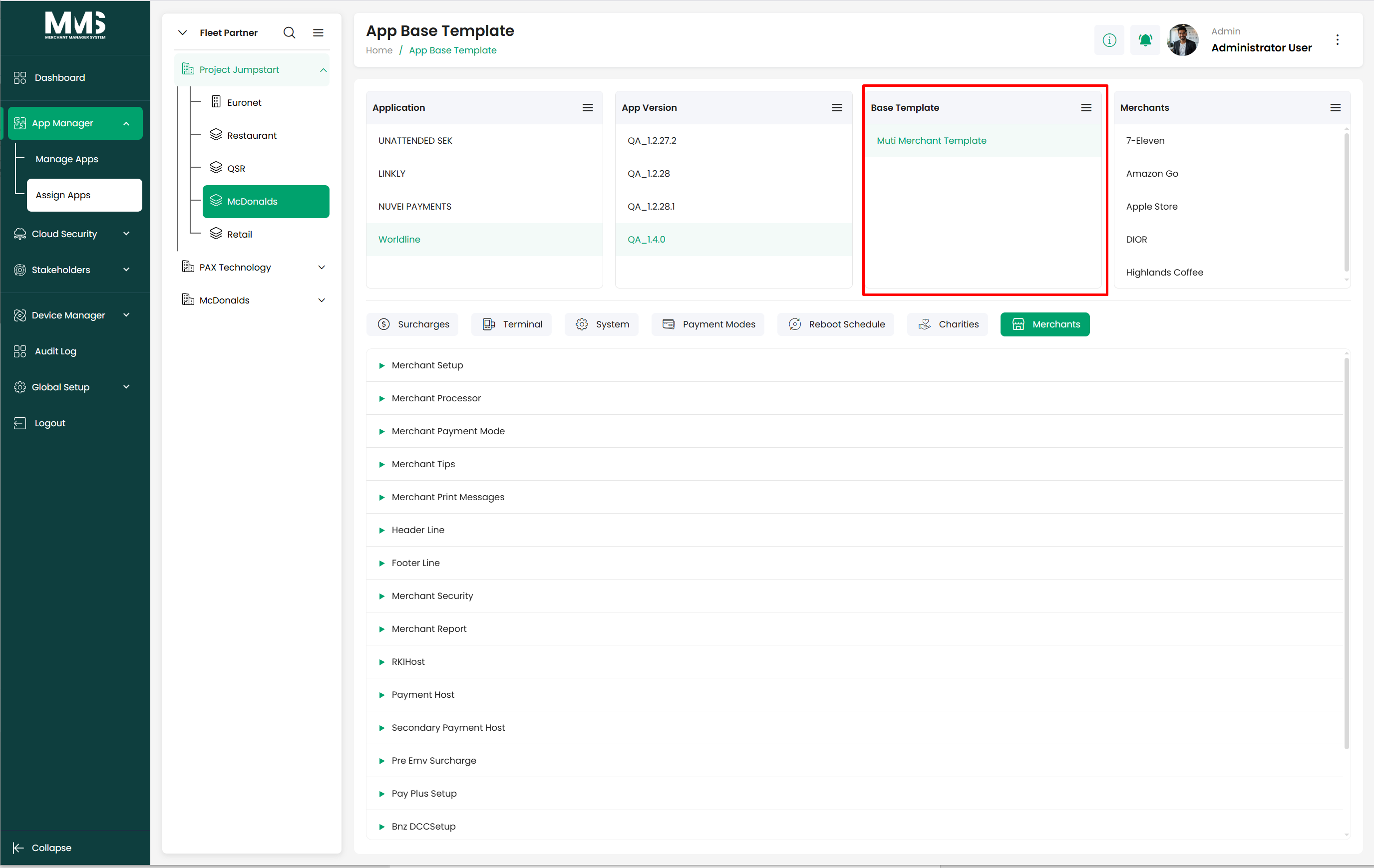
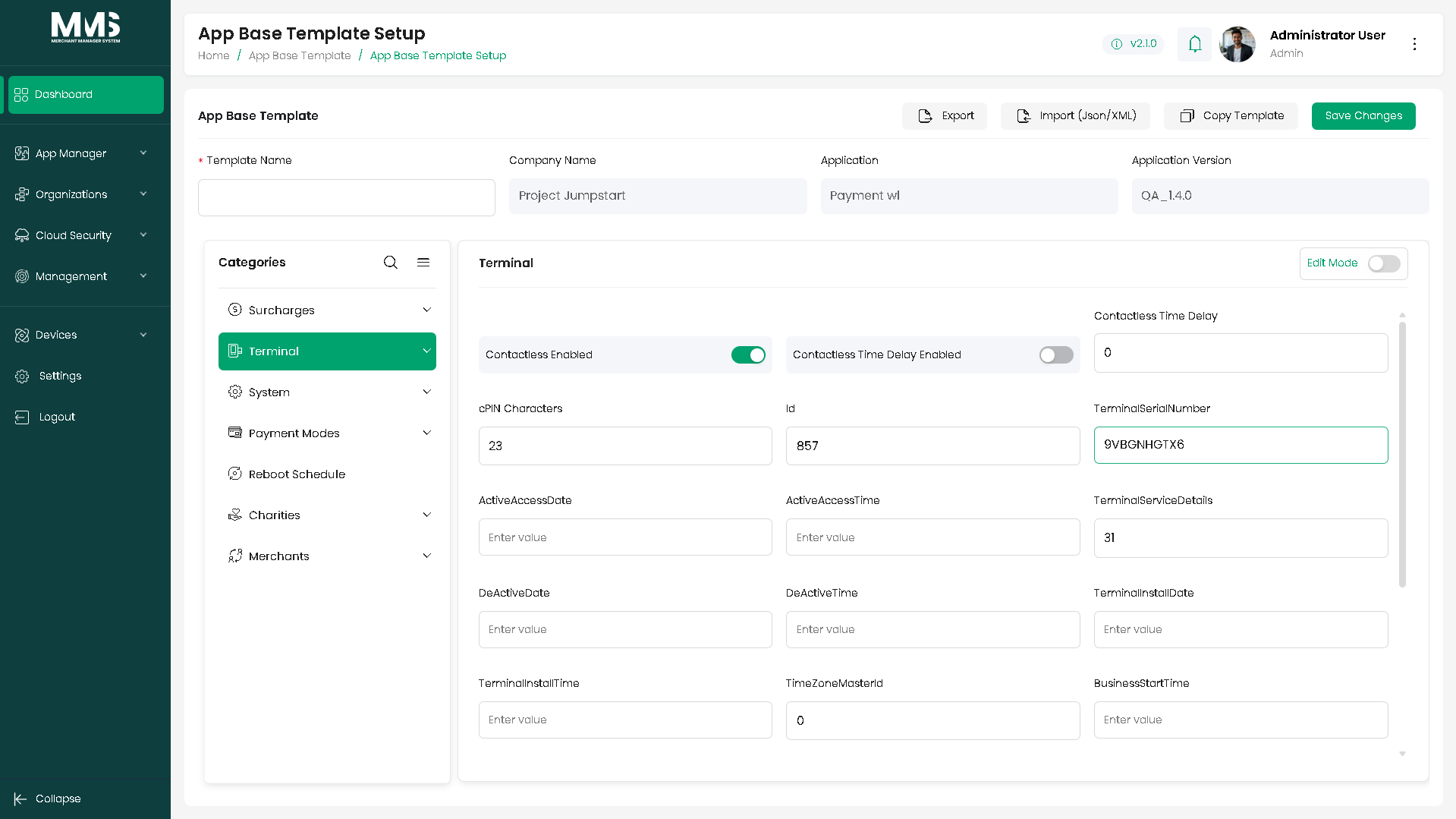
- Create and manage base templates derived from assigned app versions.
- Configure company-level settings: system setup, security, modules, operational parameters.
- Support dynamic template structures that adapt to application requirements (not constrained by fixed layouts).
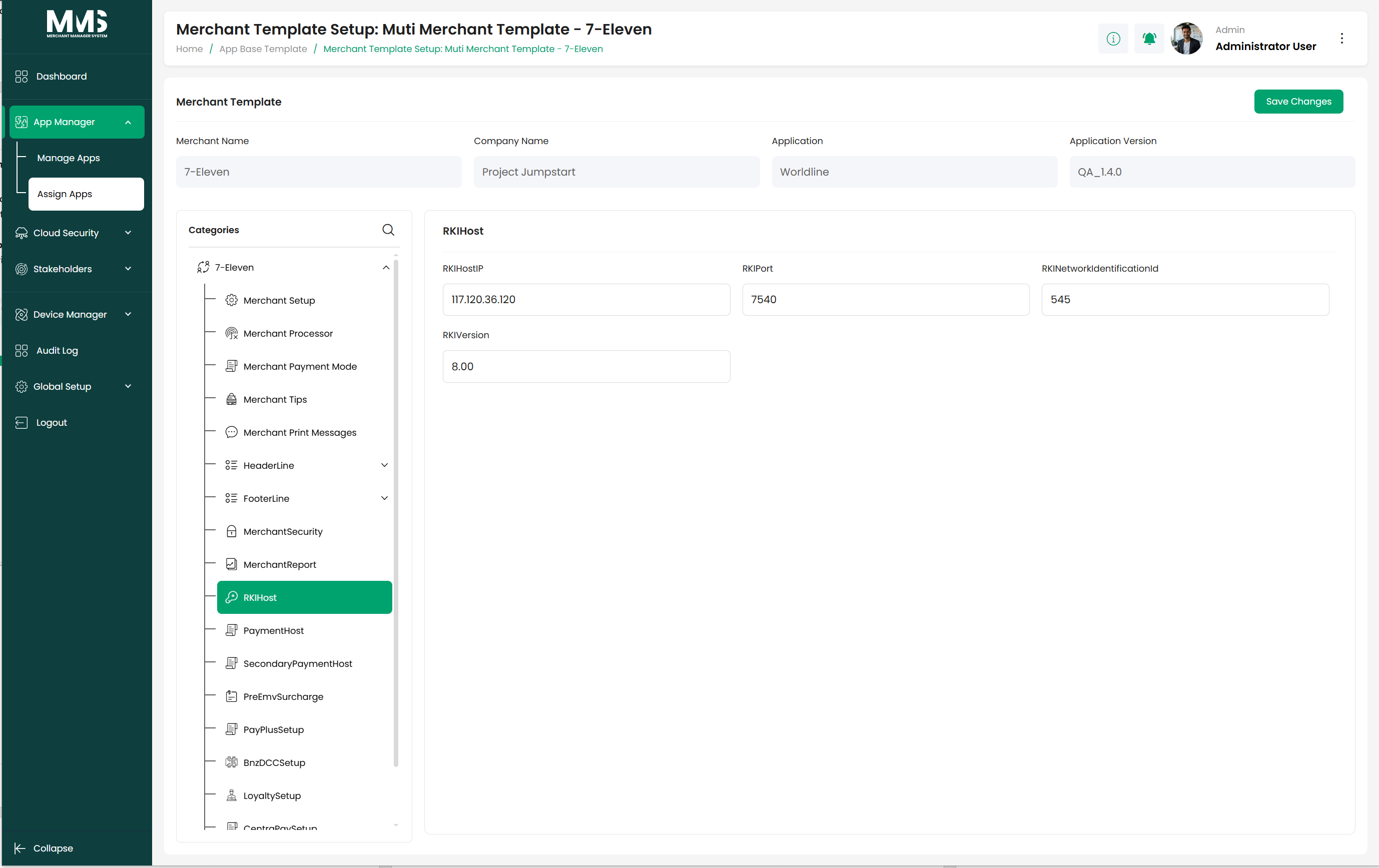
- Apply base templates globally to merchants and auto-propagate settings to associated terminals.
- Activate, deactivate, and version-control base templates.
Steps¶
4.1 Manage Apps¶
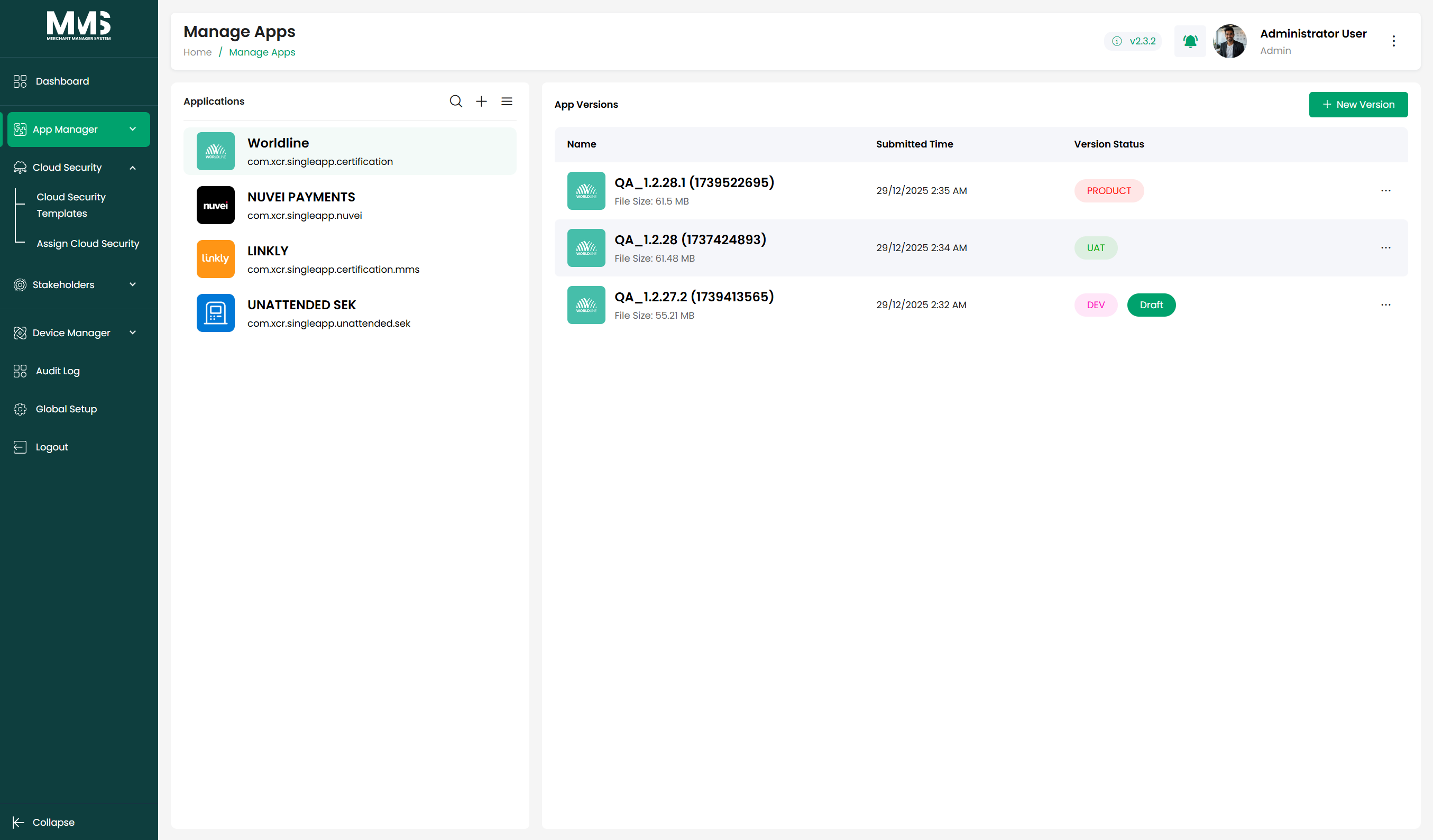
- Navigate to the Manage Apps page.
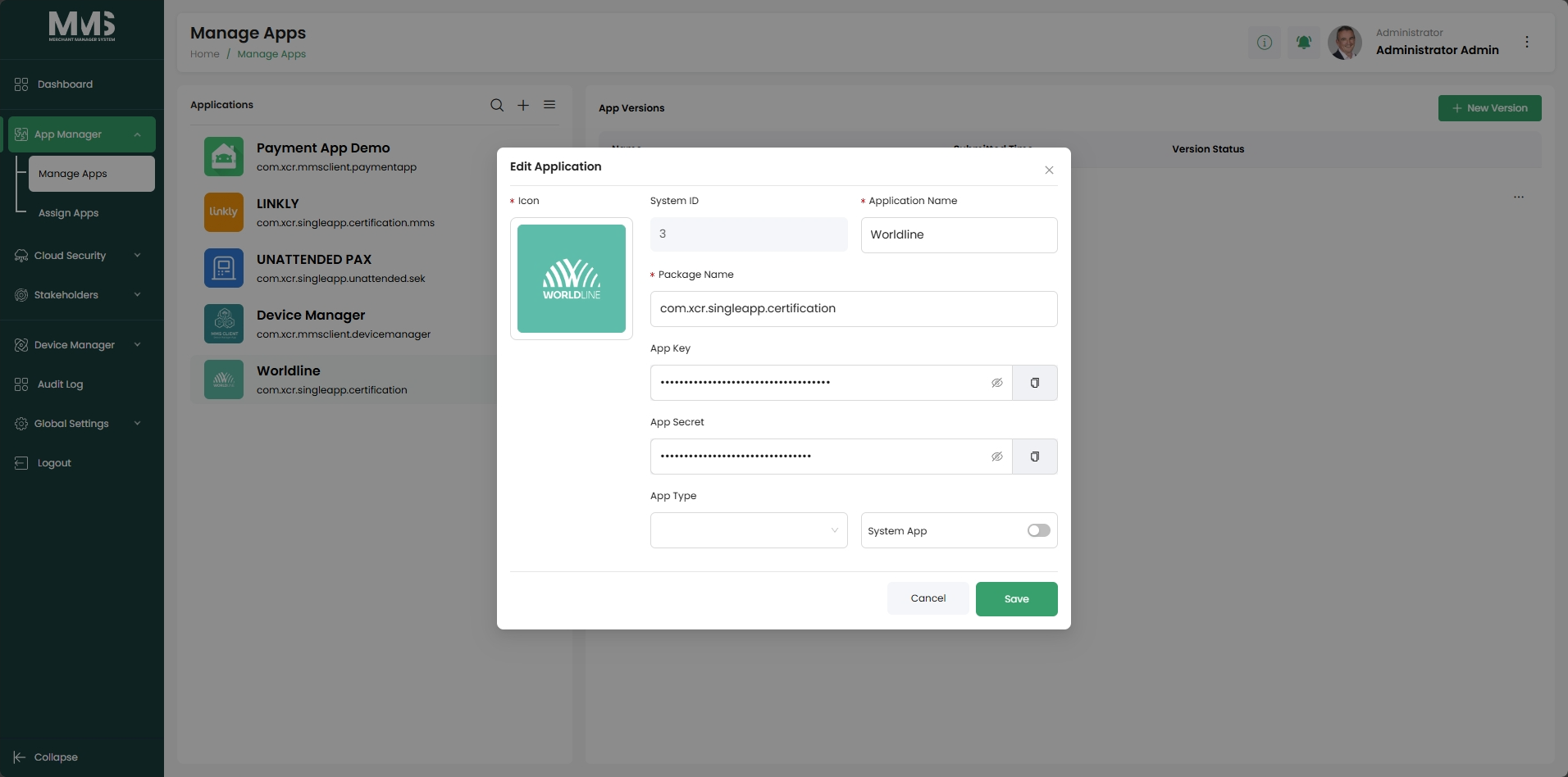
- Click the Plus icon to create a new application.
- Enter the required application information (e.g., Application Name).
- Click Save.
- Select the created application from the list.
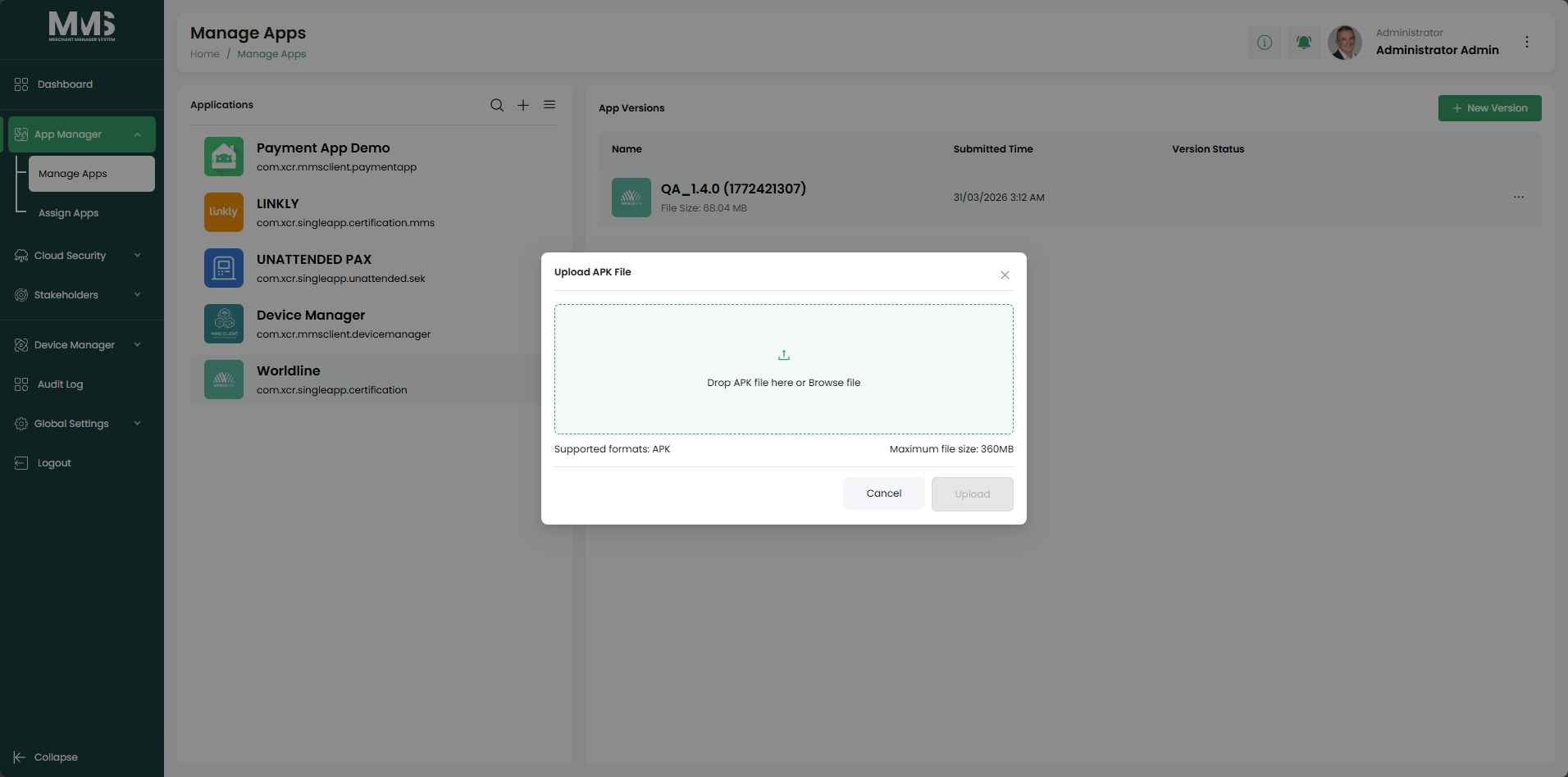
- Click New Version (App Versions panel appears empty for a new app).
- In the modal, choose the APK file from your device.
- Click Upload.
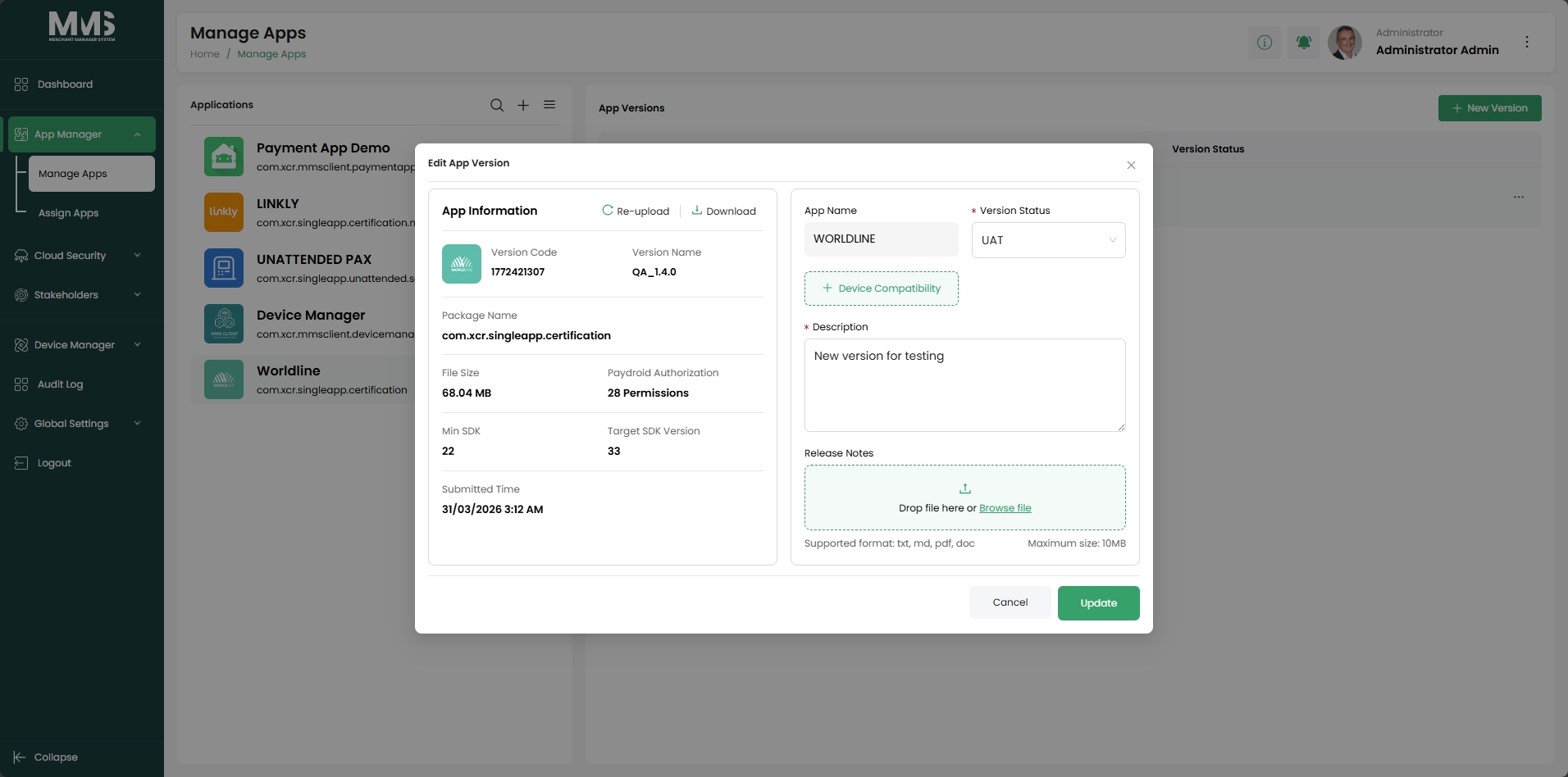
- The system automatically displays the extracted metadata:
- Package name
- Application name
- Version and build number
- Application icon
- View the list of uploaded versions; select a version to view details.
4.2 Assign Applications¶
See the App Template documentation for detailed setup steps. From the User Guide: assign applications to companies and create base templates to standardize configuration settings across merchants and devices.
Notes¶
- Multiple APK versions can be uploaded for a single application.
- Application metadata is automatically extracted from the APK file — ensure the APK is valid before uploading.
Out of scope¶
Per-template charity/processor data sources are managed under stakeholders (Charities, Processors).
Acceptance criteria¶
- [x] Create apps and upload multiple APK versions with auto-extracted metadata.
- [x] Assign app versions to companies / company groups.
- [x] Create base templates from assigned versions and propagate to merchants and terminals.
- [x] Activate / deactivate / version-control base templates.
Linked pages¶
- ../specs/mms-features-v2.5
- ../specs/mms-userguide-v2.5 — User Guide §4
- stakeholders — Charities and Processors feed base templates
- bulk-changes — Template Amendments and Base Template Assign operate on these templates
- device-manager-device-setup — App Templates applied at device level
Screenshots¶
Status history¶
- 2026-05-27 — ingested from features doc v2.5 (Manage Apps + Assign Applications both "Completed") → shipped
- 2026-06-03 — step-by-step Manage Apps flow added from
raw/specs/MMS_UserGuide_v2.5.0.0.docx§4